Quick Release offers two WhatsApp channels. This page covers WhatsApp free: your phone’s WhatsApp Business app linked to Quick Release with a QR code, free of charge but on an unofficial connection that Meta may block. The official, paid alternative is WhatsApp Business, which keeps the app on your phone working as well; the switch is described step by step. The messaging toggle, SMS fallback and message retention settings below apply to both channels.
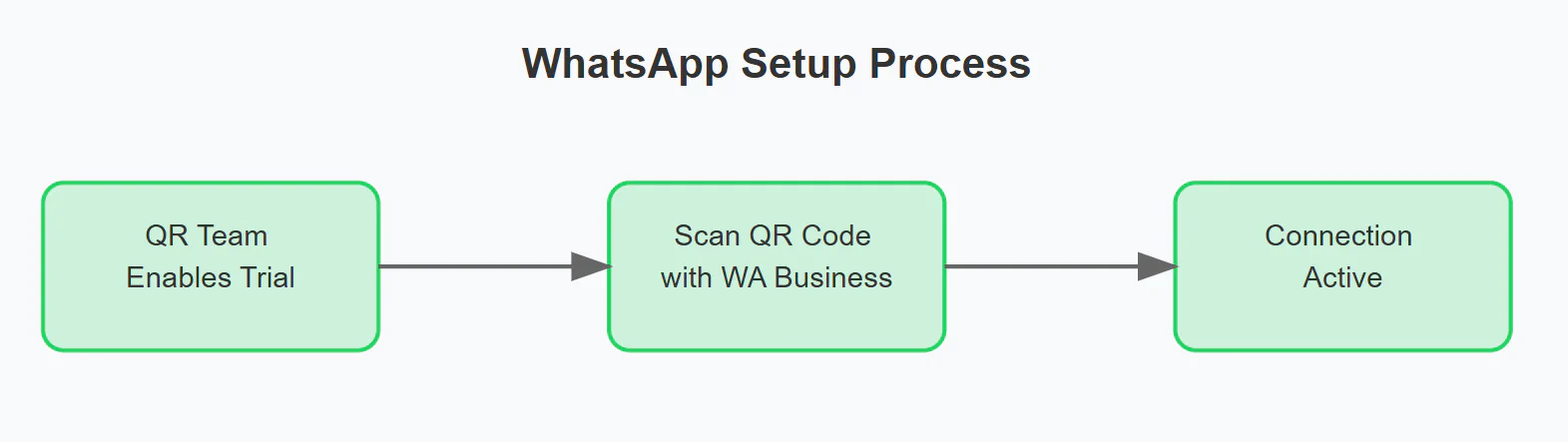
This guide will walk you through the process of setting up WhatsApp for Business as a linked device using QR. WhatsApp integration allows you to communicate with your customers through their preferred messaging platform while managing everything through the QR interface. The setup process is straightforward but requires careful attention to specific requirements and settings.
When your WhatsApp session is lost, you no longer have to spot the orange indicator yourself. A red action-required banner appears at the top of every admin page until you re-pair. Clicking the banner takes you directly to this WhatsApp panel with the QR code ready to scan. See the Action-required banner release note for details.
Under the WhatsApp settings you can also configure how long conversations are kept, separately for two categories:
Setting
What it covers
Closed bookings
Messages on bookings that have been completed or cancelled
Crew
Conversations with your ground crew and pilots
For each, choose Never (default — nothing is deleted) or a period of 1 to 10 years. We recommend 2 years. Messages on open bookings are never deleted, regardless of this setting — a booking only becomes eligible once it’s closed.
A nightly check flags messages older than the chosen period. Flagged messages:
Disappear from the dashboard immediately.
Are permanently deleted 90 days later.
If you change the setting back (or to Never) within those 90 days, the messages reappear. After 90 days, deletion is final.
Before saving a shorter period, the settings page shows exactly how many messages will be affected on the next check, so you can review the impact before confirming.
A dedicated WhatsApp Business number that’s separate from your personal WhatsApp account. This ensures clear separation between business and personal communications
A main device running WhatsApp Business app - this will be your primary business account
A properly configured business profile including your business name, description, and category
The main device must be activated at least once every 30 days to maintain the connection. We strongly recommend using a dual SIM phone managed by your operations manager for this purpose
The system uses your existing SMS templates for consistency across channels
When sending messages, you have two options:
Send via WhatsApp
Send via SMS (primary method)
UP-links receive special treatment in WhatsApp - instead of showing as plain text, they appear as “Your personal balloon flight page” with proper formatting
Any message you send through QR will also appear on your main WhatsApp Business device. This is normal and helps maintain message history or reply directly from your own smartphone.
Messages are delivered instantly when recipients are online
Current Limitations:
The system currently doesn’t support rich media content (images, audio, video, or location sharing)
Messages sent directly from your WhatsApp Business phone won’t be visible in the QR interface
All incoming customer messages appear in your QR interface in real-time
Text messages are clearly marked with the WhatsApp icon for easy identification
When customers send unsupported message types (like images or voice messages), you’ll receive a notification explaining that the content type isn’t supported. Just verify the message on your smartphone.
New messages generate notifications similar to the SMS system you’re familiar with
Messages are threaded by conversation for easy tracking